An advantage of usingConcur’sRequest or Report Process view versus Intelligence is that the data viewed is live.This tool should be usedto see department reports with updates from the same day.
Glossary
Department Request/Report Process View Permission - Grants access to view submitted Concur items from selected departments. If you do not have access to this and should, complete an access request following the user guide (pdf).
Group – This button in processor view allows you to narrow your search by department.
List Settings – This button in processor view allows you to add or remove columns in your search.
Query – a saved search that can be easily selected and run multiple times without having to reset filters and search criteria.
Navigation tips
To access this feature, choose either Requests and Process Requests or Expense and Process Reports from the left side of the screen.
In the Process view, you can narrow your search by entering your criteria in the search boxes. For example, you can choose to search by Request ID, Report Number, Employe Name, Dates, or Amounts. Depending on the criteria you enter, you will need to choose how to use that information to search such as “Begins with” or “Contains” and then type the information you are searching for in the third box. You can add up to two criteria to search by.
After the criteria you need to search by is in the boxes, click “Go.”
Once you have the search results, you can send this data to Excel from the bottom of the screen. You can also rearrange the columns or add new columns from the “List Settings.”
Creating custom queries is available for both Requests and Reports. This can be helpful for searches you use regularly.
To access this feature, choose either Requests and Process Requests or Expense and Process Reports from the left side of the screen.
On this screen click “Create/Manage Queries” to add a new query. Select “Create New Query” to begin a new query. You can also manage any queries you have created by clicking on the name of the query.
When creating a new query, type the name of query in the top right to begin. Next, choose the criteria you want to search for. The first selection will be made by the drop down in the first box. The other criteria options will appear on the right side of the screen to select from. You can search for multiple conditions by clicking “Insert” and choosing the and/or option and repeating the prior steps.
Example Query: To set up a query to view reports sent back to employee, choose Report, Approval Status, Equal, Sent Back to Employee
Once all criteria are selected, click “Save.” will show up in “Run Query” drop down.
Note: to set a default query, click “Preferences” and choose the query you want to appear by default on this screen
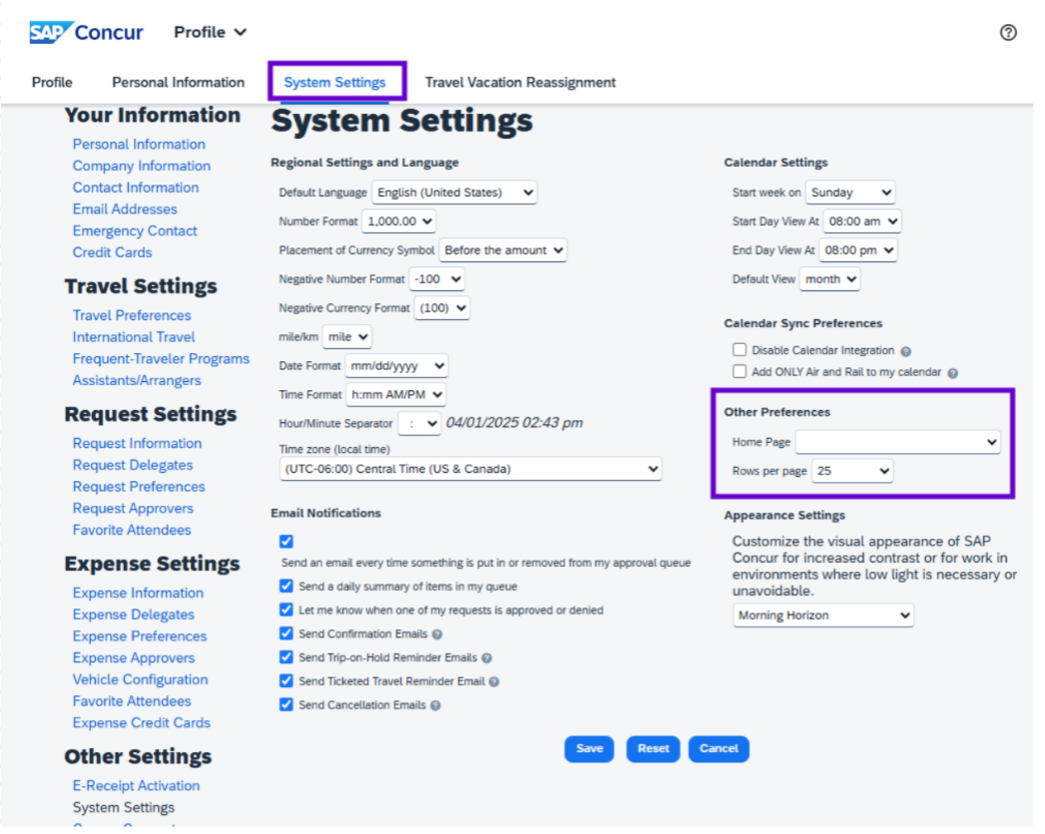
To make this change, navigate to your profile settings by clicking the circle in the top right corner.
Select “Settings” and Select "System Settings."
Under "Other Preferences," change your default home page to the preferred page.